Customizing Plinky Synth Firmware
Nov 11, 25Plinky is a fully open source (hardware+software) 8 voice polyphonic synth/sampler/sequencer. It runs on the STM32l476VGT6, a 32-Bit ARM Cortex processor. Something that often comes up for me in my hardware setup is the need to slightly tweak the MIDI implementation of a device for ergonomic or creative reasons. Since most manufacturers provide no means of customizing their device’s firmware, if you need to do this you might have to resort to an expensive and bulky external MIDI translation device like a BomeBox. Fortunately since Plinky is open source, it’s pretty easy to make these changes ourselves. In this example I’ll walk through the process of creating a custom firmware for the Plinky that will let us change the currently active Plinky preset via a CC command, instead of just with the PC commands which is the default functionality.
1. Find a Suitable CC value
Our new CC values can’t conflict with any existing ones already used by the Plinky. Looking at the list of CC mappings in ccmap.txt, we can see that 120 is free. Just for record keeping we can add it to this file as well:
116         P_JIT_POS,
117         P_JIT_GRAINSIZE,
118         P_JIT_RATE,
119         P_JIT_PULSE // TODO
120         PRESET_SELECT // CC 120 - Preset selection (0-127 maps to presets 0-31)
2. Handle Changes in Our CC Value
All the logic pertaining to processing incoming MIDI messages for the Plinky is contained in the processmidimsg function. In it a set of branching statements is used to connect different messages with Plinky’s internal functionality, setting parameter values, triggering notes, etc. All we need to do is add in a new check for our CC120 value, and then call the handy, high-level SetPreset function. We can also write a message to the screen to confirm it’s working.
    //...
    case 0xb: // cc param
    {
        if (d1 >= 32 && d1 < 64)
            midi_lsb[d1 - 32] = d2;

        // Handle CC 120 for preset selection (0-127 maps to presets 0-31)
        if (d1 == 120) {
            int presetSlot = (d2 * 31) / 127;  // Scale CC value 0-127 to preset slots 0-31
            if (presetSlot < 32) {
                static char slotMsg[32];
                snprintf(slotMsg, sizeof(slotMsg), "CC120Slot%d", presetSlot);
                ShowMessage(F_32_BOLD, slotMsg, 0);
                SetPreset(presetSlot, false);
            }
            break;
        }
    //...
3. Build and Upload Custom Firmware
I’m able to ascertain that the bulk of development for Plinky has occurred on Mac/Linux, so building on Windows using cmake was a bit of a tooling nightmare. The most surefire way to get a build to work is by installing STM32CubeProgrammer, which is something of a hybrid between Visual Studio and Arduino IDE but just for STM32 microcontrollers.
Prerequisites
- Install STM32CubeIDE - Download free from ST’s website
- Install Python 3.x - Ensure it works from command line
- Clone the repository - https://github.com/plinkysynth/plinky_public
Project Setup and Release Build in STM32CubeIDE
- Import Projects into STM32CubeIDE Open STM32CubeIDE and choose workspace folder Click “Import a project” on welcome screen Click “Directory…” and select root of git checkout Check the ‘sw’ project (main firmware) and ‘bootloader’ project Uncheck the root folder Click OK
- Configure Build Settings Right-click each project in left panel Select “Build Configurations” → “Set Active” → “Release” Do this for both ‘sw’ and ‘bootloader’ projects
- Build the Projects Go to “Project” menu → “Build All” Wait for build to complete successfully Files will be created in Release and Release folders
- Generate Final Firmware Files Open terminal/command prompt in root of repo Run: python cubeide_binmaker.py This creates two files: plink0B4.bin - For flashing raw Plinky via BOOT0 method plink0B4.uf2 - For updating existing Plinky via bootloader
Note that here, we’re already working with a flashed Plinky, so we don’t need to worry about building the bootloader. We just need to rename plink0B4.uf2 to CURRENT.uf2, then load it on to the Plinky as per the firmware update instructions.
Once it’s all loaded up (MAKE SURE WHEN YOU LOAD THE FIRMWARE YOU HAVE DISCONNECTED ALL BUT THE USB CABLE), once we reconnect our MIDI input we can see our CC120 message is now interactively scrolling through the Plinky presets.
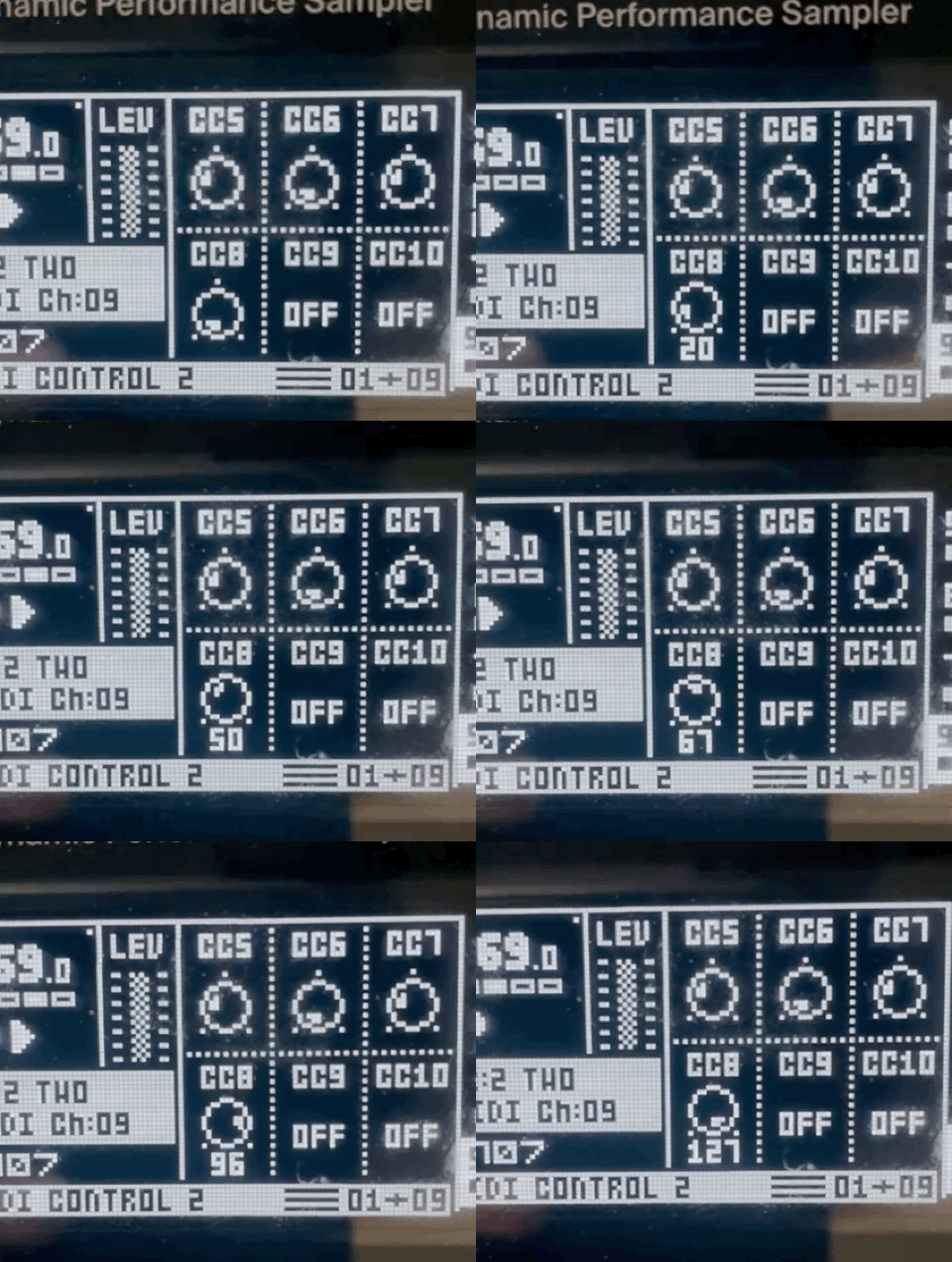
Octatrack sending CC120 values
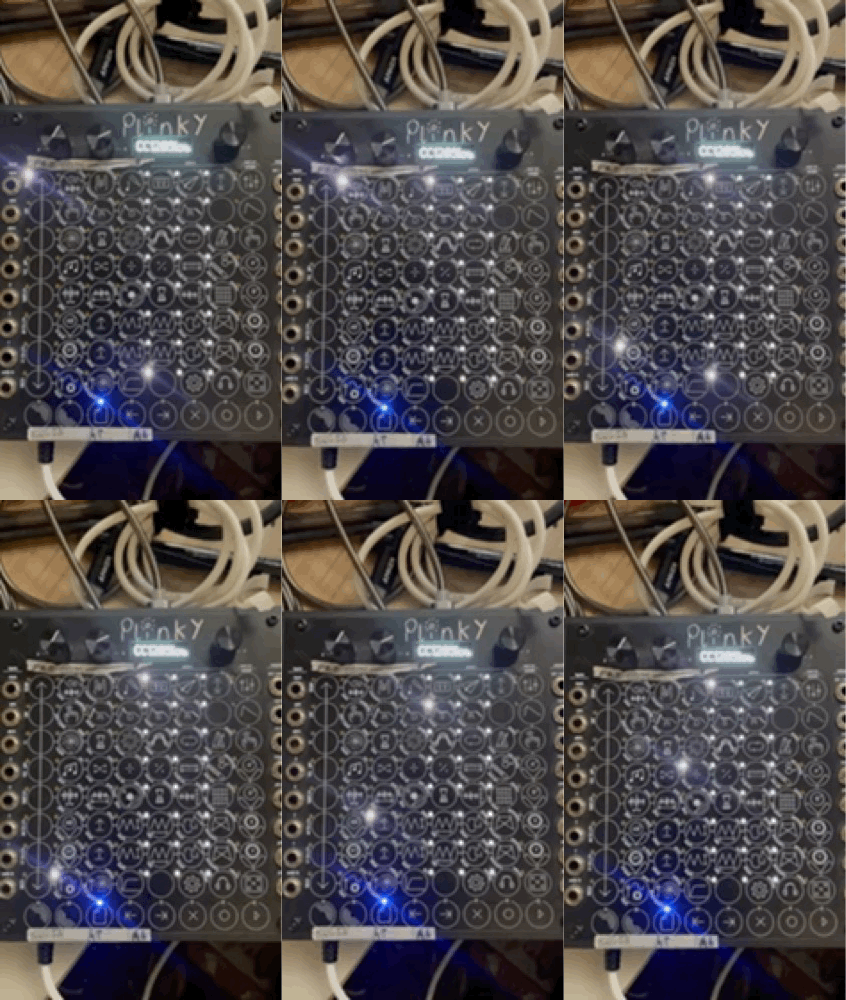
Plinky responding with preset changes